cardcapture
Editor : 에디터 설계와 이동 로직 구현 (Drag, Rotate, Resize)
2025-02-24
시작하며
에디터에서 핵심 기능이자 기본 기능인 drag(요소 이동), rotate(요소 회전), resize(요소 크기 변경)을 구현하였다. 한 번에 지금 로직들을 만든 것은 아니고 차근차근 수정해나가면서 지금의 기능을 완성하였다.
라이브러리를 사용할까 고민하기도 했었지만 에디터를 구현하는 만큼 다른 라이브러리나 이벤트와 충돌하거나 원하는 대로 동작하지 않을 때 내가 컨트롤하기 어려울 것이라는 생각이 들었고, 프론트엔드로서 서버와의 통신 없이 프론트엔드의 힘만으로 사용자에게 제공하는 기능을 만들어 보는 기회가 흔치 않다고 생각해 이 과정에서 크게 성장할 수 있을 것이라 생각해서 직접 구현하게 되었다.
설계
DOM 기반 VS Canvas 기반
그래픽 에디터를 구현하고자 생각하고 가장 먼저 DOM 기반으로 제작할 것인지, Canvas 기반으로 제작할 것인지 결정해야 했다. 어떤 장단점이 있는지 분석하고, 어떤 방식이 더 구현하기 편리할지 분석하였다.
- Canvas
- 요소를 비트맵으로 처리하고 있어서 요소가 많아져도 성능 저하가 크게 일어나지 않는다.
- 픽셀 단위의 그래픽 조작이 가능해서 복잡한 디자인 효과를 구현할 수 있다. (드로잉, 자유 도형)
- 텍스트 처리가 어렵다는 단점이 존재한다.
- DOM
- 텍스트 처리와 요소의 선택 및 이동의 구현이 편리하다.
- HTML 요소들, 컴포넌트 재사용, 상태 관리, 라이브러리를 자유롭게 적용하여 더 편리하게, 직관적으로 기능을 구현할 수 있다.
- 유사 서비스 에디터(미리캔버스, 캔바)를 확인한 결과 두 에디터 모두 DOM을 사용하고 있었다.
우리 에디터는 템플릿 제작이 메인이고, 텍스트나 요소들을 이동시키는 행동이 많이 발생할 것으로 예상되었다. 그런 면에서 DOM 에디터로 구현했을 때 더 장점이 많다고 느껴져 DOM 기반으로 제작하기로 결정하였다.
구조 정의
llm을 사용하여 카드뉴스 데이터를 만들어내야 하기 때문에 ai가 학습할 수 있는 방식, 프론트에서 관리하기 편한 방식으로 구조를 정의해서 구현하게 되었다.
- Card : 카드뉴스 한 장
    - Background: 배경 데이터 (색상 / 이미지에 대한 정보)
    - Layer: 요소 데이터
        - Position : 위치 데이터 (좌표, 크기, 순서(z-index), 회전 각도, 투명도)
        - content :  텍스트, 이미지, 도형, 일러스트 - 4종류
            - Text : React-Quill(텍스트 편집 라이브러리)의 ReactQuill.Value 데이터
            - Image : id와 url
            - Illust : (스티커, 일러스트) url
            - Shape : type과 색상

- ZIndexMap : Layer 내부 Position에 있는 z-index 값들(순서 정보)를 따로 저장해놓은 Map
- 순서를 변경할 때 매번 중첩된 요소들을 순회하는 것이 비효율적이라고 생각하여 따로 저장해두고 Map을 변경한 뒤에 Map에 맞게 Card 내부의 Position을 변경하는 방법 채택
export type Card = {
  id: number;
  background: Background;
  layers: Layer[];
};

export type Background = {
  imageId?: number;
  url: string;
  opacity: number;
  color: string;
};

export type LayerType = 'text' | 'image' | 'shape' | 'illust';

export type Layer = {
  type: LayerType;
  content: Image | Shape | Text | Illust;
  id: number;
  position: Position;
};

export type Image = {
  imageId?: number;
  url: string;
};

export type ShapeType = 'rect' | 'circle' | 'triangle' | 'star';

export type Shape = {
  type: ShapeType;
  color: string;
};

export type Illust = {
  url: string;
};

export type Text = {
  content: ReactQuill.Value;
};

export type Position = {
  x: number;
  y: number;
  width: number;
  height: number;
  rotate: number;
  zIndex: number;
  opacity: number;
};

export type ZIndexMap = {
  [cardId: number]: {
    [layerId: number]: number;
  };};
서버에 저장할때는 중첩된 객체를 JSON String으로 변경하여 전송하고, 프론트에서는 parsing하는 방식을 사용하여 불필요한 서버 리소스 사용을 줄이고자 하였다. 백엔드 측에서 데이터에 대한 정보를 가지고 있을 필요가 없었기에 가능한 방식이었다.
초반에 정의한 타입이었는데, 사용하면서 수정하고 싶은 부분이 많이 있었다.
- 도형 타입이 4개로 정해져있는 것 (더 다양한 도형을 제공할때 불편할 것)
- 일러스트와 이미지에 대한 타입 정의가 똑같은데 구분해서 사용하는 점(이미지라는 점은 동일하지만 편집하는 탭이 다르고 관리 방식이 달라서 나눠놓았다.)
- LayerType과 Content에 들어가는 각 타입 (Text, Image, ...)들을 연결시켜서 타입관리 하지 않은 점 (객체에 저장하는 과정이나, 데이터를 생성할 때 둘이 일치하게 생성되도록 해놓긴 했지만 둘이 일치하지 않아도 타입에서 문제가 없어서 관리할 때 어려움이 있다)
(현재는 리팩토링을 진행하여 일부 구조가 변경되었고, 그 과정에서 이러한 문제들을 수정하였다.)
상태 관리
상태관리는 Zustand 라이브러리를 사용했는데, Redux만 사용해봤던 내게 Zustand는 혁명이었다. 값의 변경과 참조가 너무 편리하고 use--의 hook방식으로 사용되었기 때문에 러닝커브 없이 바로 프로젝트에 적용할 수 있었다.
에디터를 관리하는 Store는 2개로 전체 카드 정보를 저장하는 CardStore와 현재 포커스된 요소에 대한 정보를 저장하는 FocusStore 이다. 선택된 Layer는 FocusBox로 감싼 형태, 선택되지 않은 Layer는 LayerBox로 감싼 형태로 렌더링 된다.
- FocusBox : 요소 변경 컴포넌트
- LayerBox : 위치에 맞게 렌더링만 시키는 컴포넌트 (편집 불가능)
그래서 주로 설명할 요소 변경 로직들은 FocusBox에 적용되고 있다. 각 로직들이 충돌되지 않고 의도한 바 대로 움직이게 하는 것이 어려운 점 중 하나였다.
초기 구현과 컨셉
구현 초기에는 다른 곳에 재사용될 로직이 아니고 오직 FocusBox에만 사용될 로직이라서 코드를 분리하지 않고 FocusBox에 전부 작성하였었다.
https://github.com/SW-rocket-dan/card-capture-fe/pull/6
그러나 서비스가 커지면서 FocusBox의 역할이 커졌고, 코드가 몇백줄이 넘어가면서 나조차 코드를 해석하고 문제 발생 원인을 파악하기 어려워서 hook으로 분리하게 되었다.
- 대규모 공사가 될 걸 알았기에 걱정됐지만 그래도 잘 정리되었다.
- 어떤 경우에 hook으로 분리하는걸까, 재사용하지 않을 로직을 hook으로 분리해도 되는걸까 고민이 많았는데 엑스퍼트님과 이야기하면서 꼭 재사용을 위해서만 hook을 작성하는 것은 아니라는 것을 알게 되어서 결심하고 분리하게 되었다.
그렇게 useDrag, useRotate, useResize로 핵심 로직을 분리해서 관리하였다.
현재는 커스텀 훅으로 분리하는 리팩토링 이후에 커맨드 패턴을 도입하면서 Card 데이터를 저장하는 방식과 Card 데이터의 구조가 일부 변경되었다. 그래서 현재 코드에서는 차이점이 있지만 해당 리팩토링을 진행했을 때 시점을 기준으로 작성되었다.
구현

- 카드뉴스 데이터를 보여주는 에디터 화면은 CardArea라는 컴포넌트에 구현되어있다.
- card 데이터를 가져와서 해당 card가 가진 layer 요소들을 렌더링한다.
- position에 저장된 값들에 따라 요소를 위치시킨다.
- 편집 툴바와 요소를 연결하기 위해 선택된 요소에 대한 id가 focusStore에 저장된다.
- focusedId와 현재 레이어 id가 같다면 FocusBox로 렌더링한다.
- 아니라면 LayerBox로 렌더링한다.
- FocusBox로 렌더링된 요소는 각 버튼, 위치에 이벤트 리스너가 등록되어 있어서, 특정 위치를 클릭해서 드래그하게 되면 그 위치에 맞는 이벤트가 발생하고 처리되며 요소가 변경된다.
1. useDrag
동작 방식
동작을 설명하기에 앞서 각 요소의 좌표는 왼쪽 위(그림에서 별표)를 기준으로 하고 있다. 가운데가 아닌 왼쪽 위가 기준이기 때문에 좌표 계산시에 항상 그 점을 고려해줘야 했다.
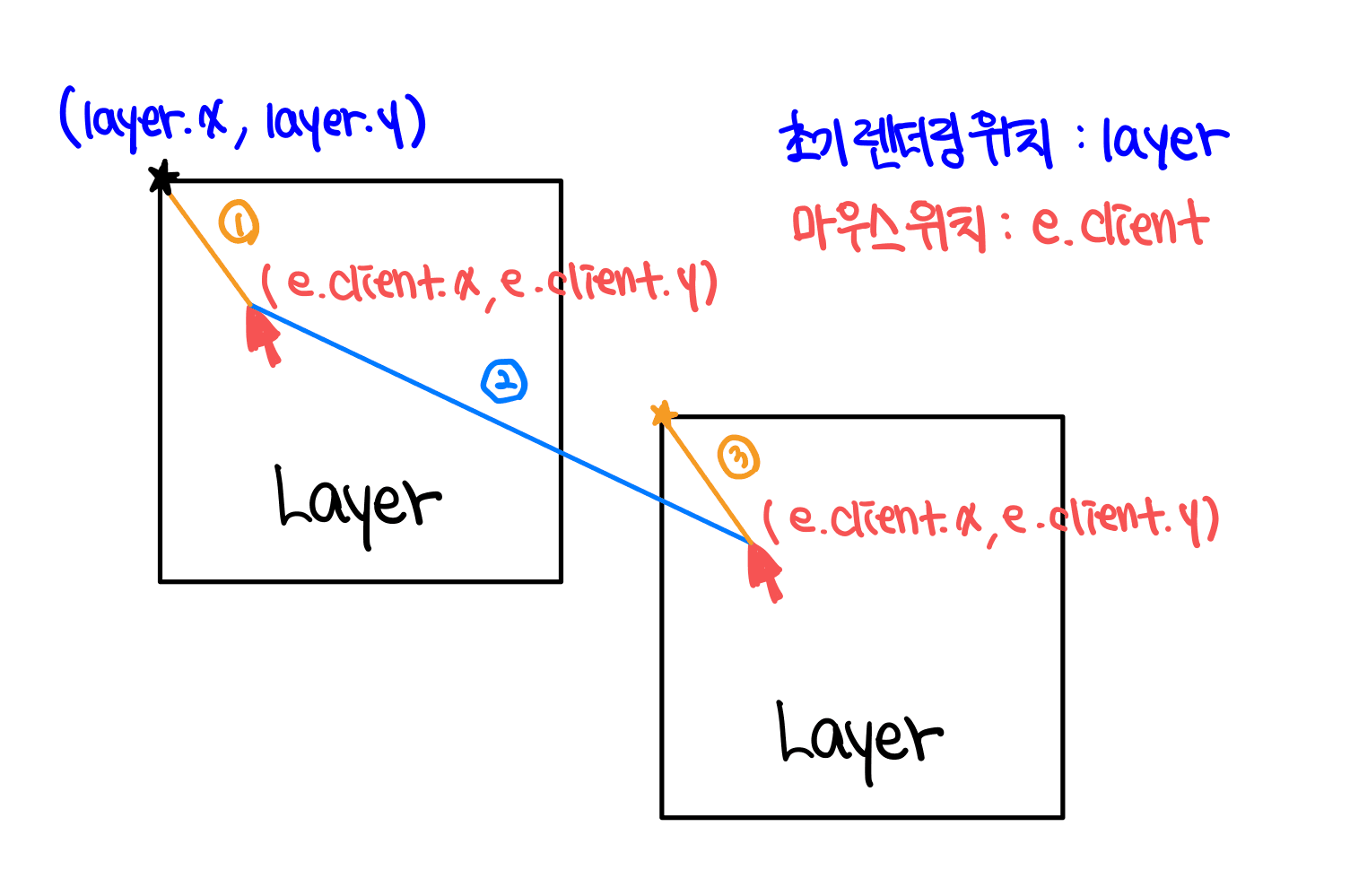
- layer : 초기 위치 (CardStore에 저장되어있는 위치)
- curPositoin : 화면에 렌더링될 위치 (화면 상태와 스토어 상태를 분리함)
- dragOffset : 요소의 기준점에서 초기 마우스 좌표 사이의 거리
- 초기 위치와 드래그 이벤트가 시작되었을 때의 마우스 위치 사이의 거리를 구해준다. (calculateDragOffset)
- 좌표는 왼쪽 위 기준으로 되어있는데 마우스는 해당 위치에서 떨어진 곳을 잡기 때문에 그 거리만큼을 조정해줘야지 이동 후에 정확한 새 좌표가 계산 가능하다.
- 마우스가 이동하게 되면, 해당 위치에서 dragOffset을 뺀 기준점의 위치를 구하고(calculateCurPosition) 이를 curPosition에 업데이트 한다.
- 화면에는 위치가 바로 업데이트 되어 마우스 이동과 동시에 요소가 움직이는 것으로 보인다.
- 이동이 끝나면 최종 위치를 CardStore에 저장한다.
코드
type UseDragProps = {
  cardId: number;
  layerId: number;
  type?: LayerType;
  curPosition: Position;
  setCurPosition: React.Dispatch<React.SetStateAction<Position>>;
  initialMouseDown: React.MouseEvent | null;
  isDoubleClicked: boolean;
};

const useDrag = ({
  cardId,
  layerId,
  type,
  curPosition,
  setCurPosition,
  initialMouseDown,
  isDoubleClicked,
}: UseDragProps) => {
  const layer = useCardsStore(state => state.cards[cardId].layers.filter(v => v.id === layerId)[0]);
  const setPosition = useCardsStore(state => state.setPosition);

  const [isDrag, setIsDrag] = useState(false);
  const [dragOffset, setDragOffset] = useState<Point>({
    ...INITIAL_DRAG_OFFSET,
  });

  /**
   * 요소를 잡았을 때 초기 위치에서(layer.position) 마우스 위치(clientX, clientY)까지 어느정도의 offset이 있는지 계산하는 로직
   * 좌표는 왼쪽 위 기준으로 되어있는데 마우스는 해당 위치에서 떨어진 곳을 잡기 때문에 그 이동 위치만큼 뺴줘야지 정확한 새 좌표 계산 가능
   */
  const calculateDragOffset = (e: React.PointerEvent | React.MouseEvent): Point => {
    return {
      x: e.clientX - layer.position.x,
      y: e.clientY - layer.position.y,
    };
  };

  /**
   * 현재 마우스 위치에서 offset을 빼서 요소 렌더링 기준이 되는 왼쪽 위 좌표 계산
   */
  const calculateCurPosition = (e: PointerEvent | MouseEvent) => {
    return {
      x: e.clientX - dragOffset.x,
      y: e.clientY - dragOffset.y,
    };
  };

  /**
   * Layer pointerDown시 실행되는 로직
   * 이벤트 등록을 위해 상태 true로 변경.
   */
  const pointerDownDragHandler = (e: React.PointerEvent | React.MouseEvent) => {
    e.stopPropagation();

    setIsDrag(true);
    setDragOffset(calculateDragOffset(e));
  };

  /**
   * LayerBox -> FocusBox로 변경될 때 mouseDown 이벤트 전달해서 바로 드래그 되도록 하는 로직
   * initialMouseDown : LayerBox mouseDown시 발생하는 이벤트
   */
  useEffect(() => {
    if (initialMouseDown) {
      pointerDownDragHandler(initialMouseDown);
    }
  }, [initialMouseDown]);

  /**
   * 드래그 중 pointerMove 시 실행되는 로직
   * 이동한 거리를 계산해서 curPosition에 업데이트 해서 변경된 위치로 렌더링 될 수 있도록 함
   */
  const pointerMoveDragHandler = (e: PointerEvent | MouseEvent) => {
    if (!isDrag) return;

    setCurPosition(prev => ({
      ...prev,
      ...calculateCurPosition(e),
    }));
  };

  /**
   * 드래그가 끝났을 때 실행되는 로직
   * 마지막 위치를 전역 상태에 저장하고, 기록된 상태를 초기화
   */
  const pointerUpDragHandler = (e: PointerEvent | MouseEvent) => {
    setDragOffset({ ...INITIAL_DRAG_OFFSET });
    setIsDrag(false);
    setPosition(cardId, layerId, { ...curPosition, ...calculateCurPosition(e) });
  };

  /**
   * 드래그 이벤트 등록
   * 텍스트 편집 중 드래그가 발생할 수 있기 때문에 편집 모드일 때는 드래그 이벤트 적용 X
   */
  useEffect(() => {
    if (!isDrag) return;
    if (isDoubleClicked && type === 'text') return;

    window.addEventListener('pointermove', pointerMoveDragHandler);
    window.addEventListener('pointerup', pointerUpDragHandler);

    return () => {
      window.removeEventListener('pointermove', pointerMoveDragHandler);
      window.removeEventListener('pointerup', pointerUpDragHandler);
    };
  }, [isDrag]);

  return { isDrag, pointerDownDragHandler };
};

export default useDrag;
어려움 / 고민
요소의 위치가 변경될 때 바로 CardStore에 저장을 할까? 고민을 했다가 비효율적이라고 판단하여 실제 화면 렌더링 위치와 전역 상태 위치를 분리해서 조작하였다.
- layer는 배열로 관리되고 있기 때문에 매 업데이트때 마다 순회해서 요소를 찾아야한다. -> 수많은 위치 업데이트가 발생할텐데 매번 배열 순회하는 건 매우 비효율적이다.
- 또한 지금은 상태 업데이트 히스토리를 기록하고 있기 때문에 전역 상태 변경을 모두 추적하고 있다. (정확하게 말하면 커맨드로 인해 전역 상태 변경이 일어나기 때문에 커맨드가 추적되고 있다.) 만약 바로 상태 업데이트 하는 로직으로 만들었다면 모든 이동이 다 커맨드로 기록되어 원하는 대로 히스토리가 작동하지 않았을 것이다.
2. useRotate
동작 방식
아크탄젠트 (atan)
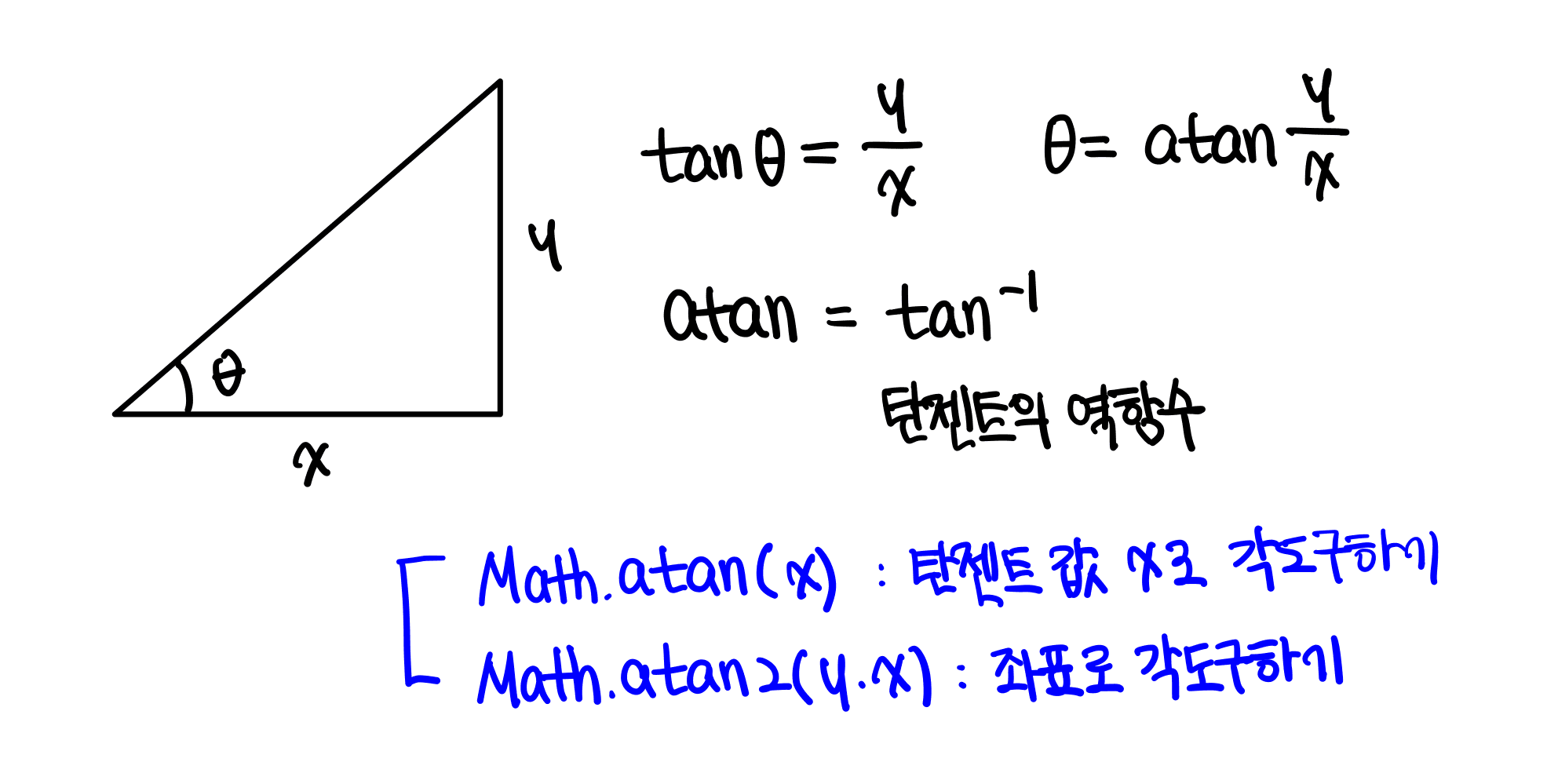
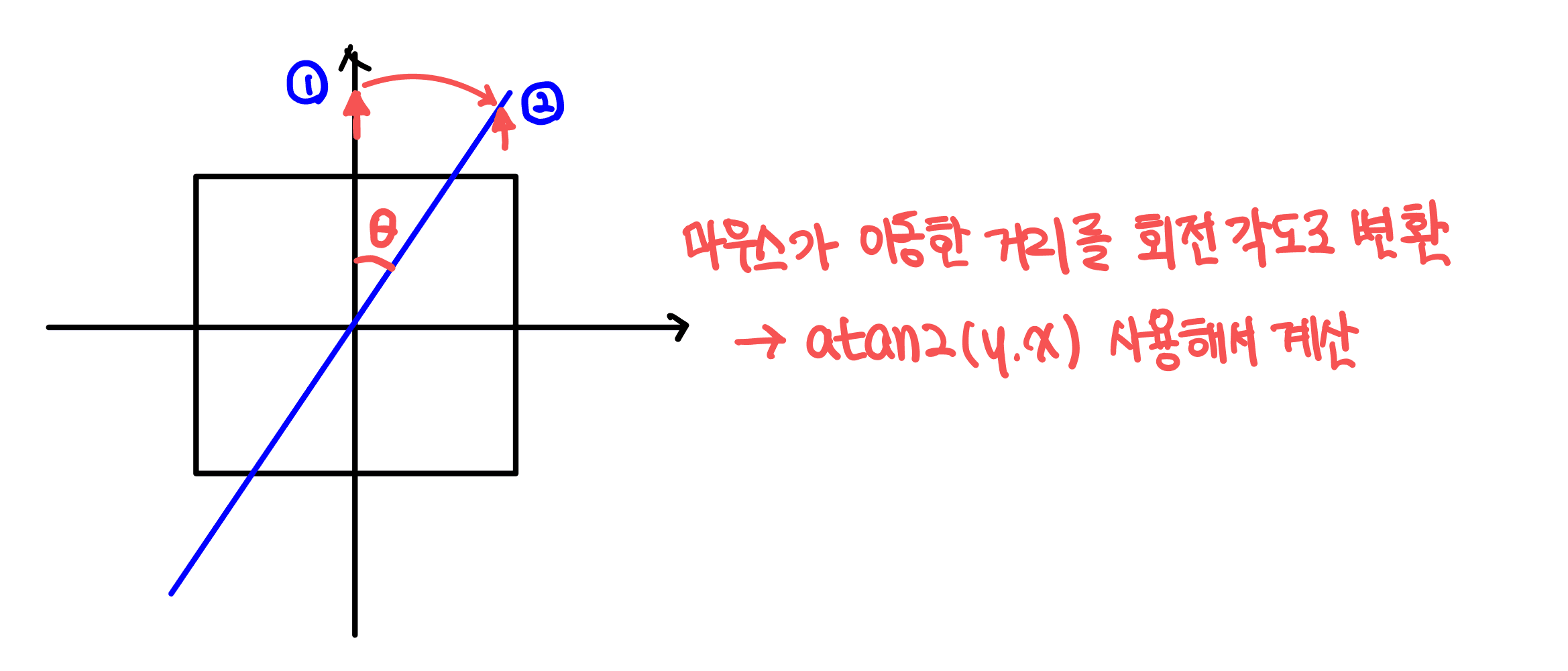
회전을 위해서는 마우스가 이동한 거리를 추적하고, 해당 변경을 각도로 변환하는 과정이 필요하였다. 이때 아크탄젠트를 사용하여 좌표를 각도로 변경해주었다.
아크탄젠트란 탄젠트의 역함수로, 중점과 기준이 되는 점의 위치(x,y) 사이의 각도를 구할 수 있는 공식이다. 자바스크립트는 Math.atan, Math.atan2 를 사용해서 쉽게 계산이 가능하다. atan2는 좌표만 사용해서 각도를 구할 수 있고, atan2는 모든 각도 범위(-180 ~ 180)를 구할 수 있기 때문에 atan2를 사용하여 각도를 구하였다.
각도 계산하기
atan2를 구할 때 주의해야 하는 부분이 존재한다.
- 브라우저 좌표계는 아래로 증가할수록 y가 증가한다. 수학적 좌표계는 아래로 갈수록 y가 감소한다.
- 시계 방향으로 증가하는 각도를 구해야 하기 때문에 x,y 좌표 차이를 반대로 적용해줘야 한다.
첫번째를 해결하기 위해서 y좌표 간 차이를 계산할 때 더 아래있는 좌표를 큰 좌표로 생각하고 계산해야 한다. 그래서 보통 (이동한 마우스 좌표 - 중점 좌표) 계산을 통해 이동 거리를 구하는데 y 좌표는 (중점 좌표 - 이동한 마우스 좌표)로 계산하면 된다
두번째는 이해가 잘 안될 수 있는데 그림을 보면 쉽게 이해할 수 있다. 기존의 아크탄젠트 공식을 통해 구한 각도는 반시계 방향의 각도이다. (중점에서 기준 위치까지 반시계 방향으로 이동한 각도) 그런데 우리는 시계방향으로 이동한 각도가 필요하므로 공식에 대입할 때 x,y의 자리를 바꿔줘야 원하는 각도를 구할 수 있다.

각도를 구해주면 회전 로직은 다 구했다고 할 수 있다. 각도 맞게 기준점을 변경하거나 하는 것 없이 transform : (rotate(x)deg)에 각도를 넣어주면 자동으로 중점 기준 회전이 진행된다.
atan2로 구한 각도는 radian 기준 각도이므로, transform이 사용하는 degree 기준 각도로 변경하여 삽입해주면 된다.

- 요소의 중점을 구한다. (기준점에서 요소의 width/2, height/2 만큼 더해주면 계산 가능하다)
- atan2를 사용해서 중점과 마우스 좌표 사이의 각도를 구한다.
- 각도를 curPosition에 저장하여 바로 화면에 반영될 수 있도록 한다.
- 이동이 끝나면 변경된 각도를 CardStore에 저장한다.
코드
type UseRotateProps = {
  cardId: number;
  layerId: number;
  boxRef: React.RefObject<HTMLDivElement>;
  curPosition: Position;
  setCurPosition: React.Dispatch<React.SetStateAction<Position>>;
};

const useRotate = ({ cardId, layerId, boxRef, curPosition, setCurPosition }: UseRotateProps) => {
  const setPosition = useCardsStore(state => state.setPosition);
  const [isRotate, setIsRotate] = useState(false);

  /**
   * 회전한 각도를 구하는 로직
   * Math.atan2를 사용하여 두 점의 좌표를 가지고 사이 각도를 구함
   */
  const calculateRotationDegrees = (e: PointerEvent) => {
    if (!boxRef.current) return;

    // 요소의 중심점 계산
    const rect = boxRef.current.getBoundingClientRect();
    const centerX = rect.left + rect.width / 2;
    const centerY = rect.top + rect.height / 2;

    // 화면 좌표계에서는 아래로 갈수록 y가 증가하기 때문에 보정하기 위해서 centerY - e.clientY 반대로 작성
    // 시계 방향 회전을 양의 각도로 표현하기 위해서 (y/x)가 아니라 (x/y)로 반대로 삽입
    const nxAngle = Math.atan2(e.clientX - centerX, centerY - e.clientY);

    return nxAngle * (180 / Math.PI); // radian -> degree 변경 리턴
  };

  /**
   * 회전 버튼 클릭시 실행되는 로직
   * 이벤트 등록을 위해 상태 true로 변경
   */
  const pointerDownRotateHandler = (e: React.PointerEvent) => {
    e.stopPropagation();
    setIsRotate(true);
  };

  /**
   * 포인터 이동할 때 실행되는 로직
   * 회전한 만큼의 각도를 구해서 curPosition 업데이트함 -> 화면에 회전된 각도로 transform됨
   */
  const pointerMoveRotateHandler = (e: PointerEvent) => {
    e.stopPropagation();

    if (!isRotate) return;
    if (!boxRef.current) return;

    const rotationDegrees = calculateRotationDegrees(e) || 0;

    setCurPosition(prev => ({
      ...prev,
      rotate: rotationDegrees,
    }));
  };

  /**
   * 포인터를 놓았을 때 실행되는 로직
   * 회전한 만큼의 각도를 전역 상태에 저장하여 회전 상태 기억하기
   */
  const pointerUpRotateHandler = (e: PointerEvent) => {
    e.stopPropagation();

    setIsRotate(false);
    if (!boxRef.current) return;

    const rotationDegrees = calculateRotationDegrees(e) || 0;
    setPosition(cardId, layerId, { ...curPosition, rotate: rotationDegrees });
  };

  // rotate 이벤트 등록
  useEffect(() => {
    if (!isRotate) return;
    window.addEventListener('pointermove', pointerMoveRotateHandler, true);
    window.addEventListener('pointerup', pointerUpRotateHandler, true);

    return () => {
      window.removeEventListener('pointermove', pointerMoveRotateHandler, true);
      window.removeEventListener('pointerup', pointerUpRotateHandler, true);
    };
  }, [isRotate]);

  return { pointerDownRotateHandler };
};

export default useRotate;
어려움 / 고민
3. useResize
동작 방식
요소의 회전같은 경우는 회전된 상태를 고려해야 하기 때문에 복잡한 계산이 많이 적용된다. 그 중 가장 중요한 점은 상대 좌표계와 고정점을 사용하는 방식이다.
화살표 방향으로 요소를 움직이게 된다면 마우스는 (+,+) 좌표가 모두 증가하는 방향으로 변한다. 이때 회전되지 않은 상태라면 그에 맞춰서 요소의 width, height를 모두 증가시켜주면 원하는 대로 변경될 것이다. 그러나 회전한 상태에서 변경하게 된다면 마우스는 (+,+)로 변경되지만 사용하는 사람이 실제 원했던 동작은 width만 변경되는 것일 것이다. 그래서 단순히 마우스의 변경을 토대로 값을 변경해서는 안되고 회전된 상태에 맞는 변경을 적용해줘야 한다.
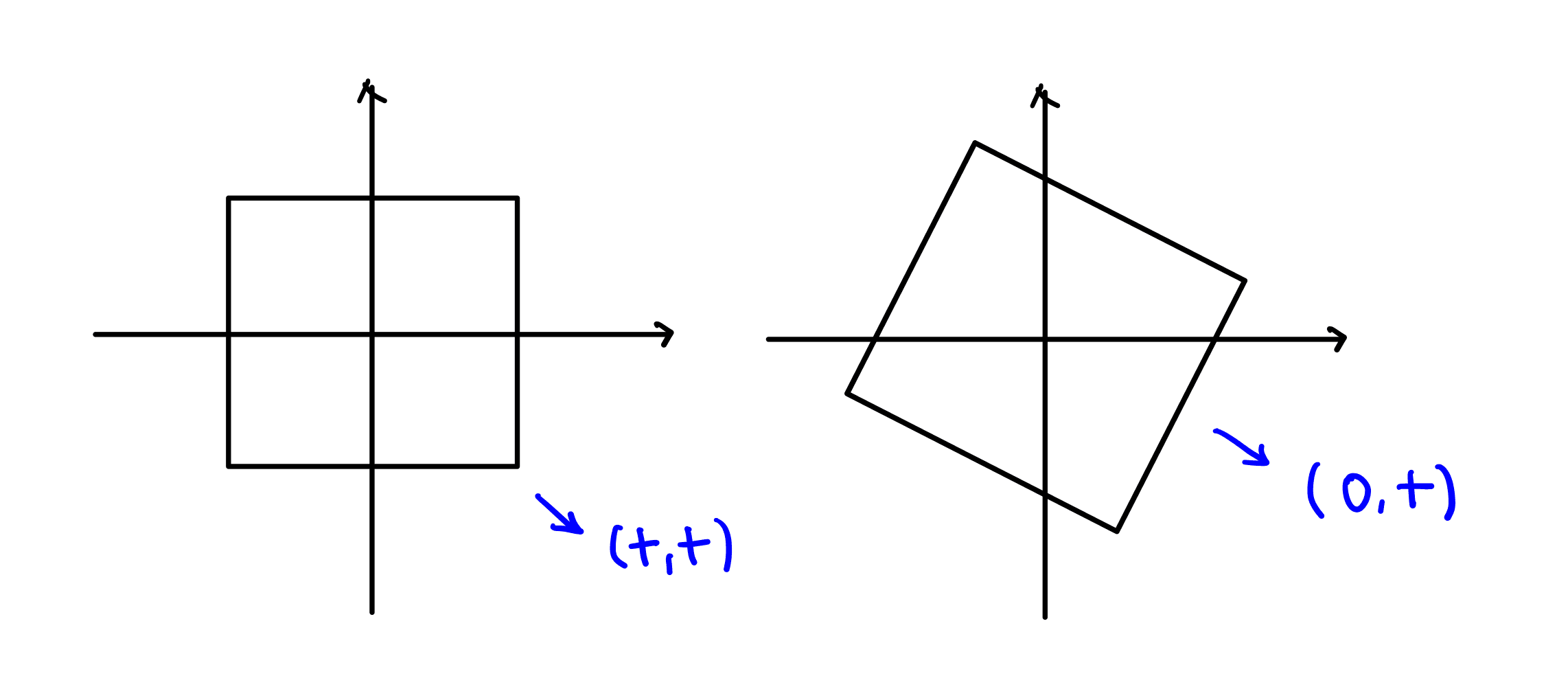
그래서 마우스의 이동 거리를 상대 좌표계에서의 이동 거리로 변경하는 과정이 필요하다. 특정 좌표를 각도만큼 이동시킬 때는 2D 회전 행렬 공식을 적용하면 된다.

- 2D 회전 행렬
- 2D에서 원점 기준 각도 만큼 반시계 방향으로 회전시킬 때 사용하는 변환 행렬
회전 행렬은 각도만큼 반시계 방향으로 회전시킨다. 현재 시계 방향 각도를 사용하고 있기 때문에 각도를 반대 부호로 변경해서 적용해주었다.
절대 좌표계의 점을 상대 좌표계의 점으로 변경하는 방법을 알게되었으니, 이제는 마우스의 이동 거리를 상대 좌표계에서의 이동 거리로 변환하는 과정이 필요하다.
- 절대 좌표계 이동 거리 : 초기 좌표 - 마우스 좌표
- 상대 좌표계 이동 거리 : 회전 행렬 적용(초기 좌표) - 회전 행렬 적용(마우스 좌표)

이동한 거리를 구했으면 이제 이를 기반으로 변경된 width와 height를 구해야 한다. 보통 요소를 변경시키고 싶은 방향이 존재하기 때문에 요소 border의 모서리와 꼭지점에 버튼을 두고, 해당 버튼을 잡은채 이동하면 해당 방향으로만 크기가 증감될 수 있도록 구현해야 했다.

무슨 의미인지 예시를 들어 설명해보자면 사용자가 s 버튼을 잡고 마우스를 아래로 내린다면 height만 변경되는 상황을 예상할 것이다. 그런데 마우스는 자유롭게 이동할 수 있다보니 s버튼을 잡은 채 대각선으로 이동하게 된다면 마우스 이동 거리에서 x,y가 모두 변하게 된다. 이때 변경된 값을 모두 width와 height에 적용해버리면 요소는 의도한 바와 다르게 widht와 height가 모두 증가하게 된다. 나는 이러한 문제를 방지하기 위하여 버튼에 맞는 요소의 크기 증가를 정의해서 해당 값만 변경되게 구현하고자 하였다.
그래서 방향에 따라 변경되어야 하는 증감 값을 설정해두고(directionConfig), 이 값에 맞게 변경된 width와 height를 구해주었다. 그 이후에 크기의 최솟값이랑 비교해서 최솟값보다 작아지면 줄어들지 않게 하는 로직도 구현하였다. 요소가 텍스트인 경우에만 작동하는데 텍스트가 차지해야하는 크기보다 요소의 크기가 작아지면 안되기 때문에 추가해주었다.
이렇게 변경된 width와 height를 구했으니 이를 요소에 적용해주면 된다. 그러나 요소의 크기를 조절할 때는 단순히 width와 height만 변경하는 것으로는 충분하지 않다. 그 이유는 요소의 기준점(왼쪽 위 좌표)이 고정된 상태에서 크기만 변경되면, 요소가 항상 남동(se) 방향으로만 크기가 조절되기 때문이다.

예를 들어, 요소의 서쪽(West) 핸들을 잡고 왼쪽으로 드래그하는 상황을 생각해보자. 이 그림대로 움직이면 어떻게 될까?
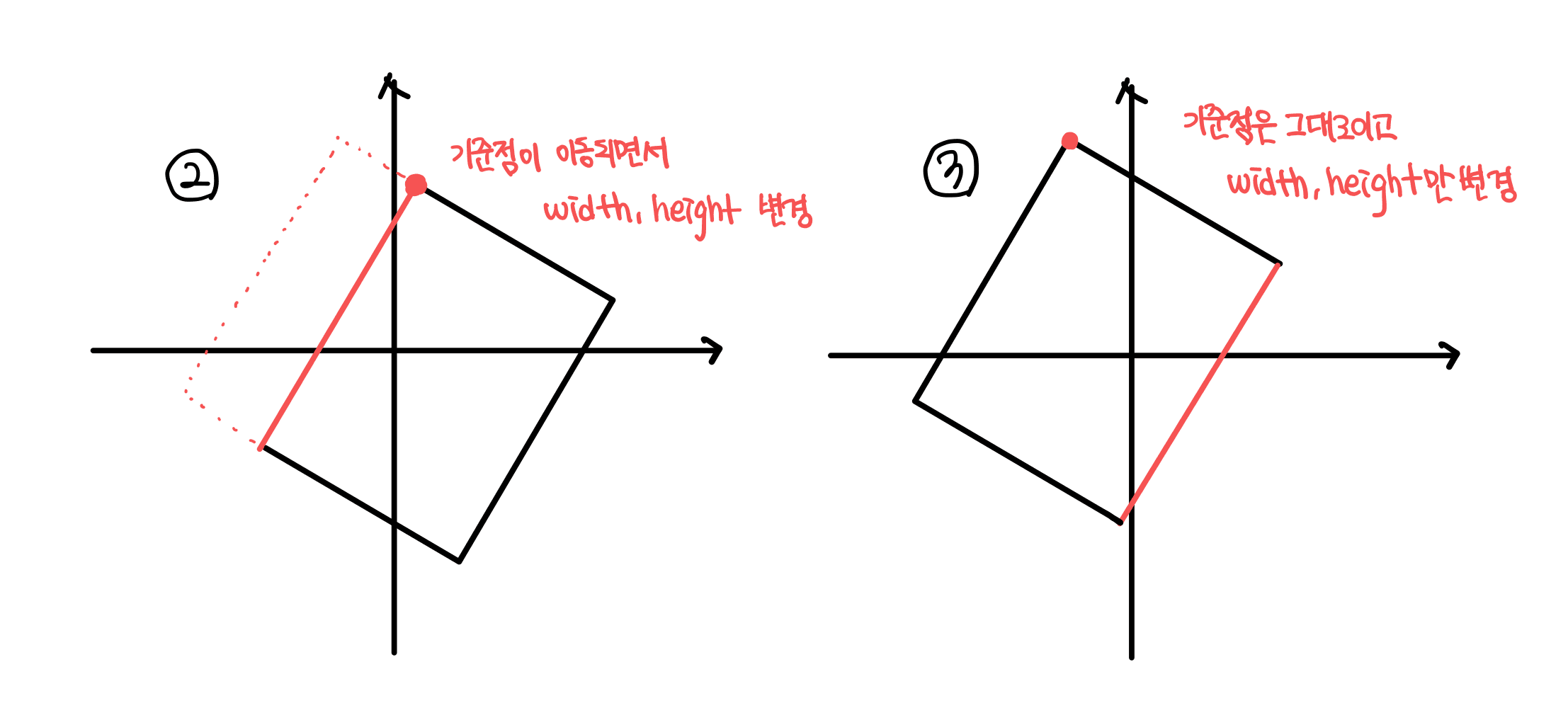
우리가 기대하는 동작은 요소의 왼쪽 경계가 마우스를 따라 이동하고 오른쪽 경계는 고정된 상태로 유지되는 것이다.(3번) 하지만 기준점이 고정된 상태에서 width만 변경하면, 오른쪽 경계가 이동하는 잘못된 결과가 나타난다.(2번) 기준점은 변경하지 않고, 값만 변경되기 때문이다.
원하는 방식으로 변경하기 위해서는 새로운 기준점의 위치를 구해야 한다는 것을 알게 되었고, 어떤 방식을 적용해야 원하는 대로 변경될지 고민하게 되었다.
이 문제를 해결하기 위해 '고정점' 개념을 도입하였다. 고정점이란 크기 조절 시 움직이지 않는 지점으로, 사용자가 드래그하는 핸들의 반대편 지점이다. 예를 들어 서쪽 핸들을 드래그할 때는 동쪽 지점이 고정점이 된다. 이 고정점을 기준으로 새로운 크기를 적용하면 원하는 동작을 구현할 수 있다.
그래서 현재 잡은 버튼의 반대가 되는 고정점을 구해주고, 고정점에 변경된 width과 height를 반영해 새로운 중심점을 구해준다. 그 다음에는 중심점에서 width, hegith의 절반만큼 이동하여 새로운 기준점을 구해준다.

왜 고정점에서 width와 height를 빼서 구하는 방식이 아니라 귀찮게 중심을 구하고, 거기서 다시 기준점을 구하지? 싶을 수 있지만 현재 고정점에서 바로 값을 빼면 상대 좌표계의 변경된 기준점을 구하게 된다. 우리가 실제 저장하는 값은 절대 좌표계 기준이기 때문에 절대 좌표계 상에서의 기준점을 구해야 한다. 중심은 상대좌표계, 절대 좌표계에서 모두 동일하기 때문에 중점을 구하고 거기서부터 기준점을 구하는 방식을 사용하였다.
(물론 상대 좌표계 기준점을 구하고, 회전 행렬을 사용하여 회전된 기준점을 구하는 방식도 가능하다고 생각한다. 그러나 삼각 함수 적용보다 덧셈 뺄셈이 더 빠르고 정확하게 적용될 수 있다고 생각하여 해당 방식을 사용하게 되었다.)
- 마우스의 이동 거리를 회전 행렬을 사용하여 상대 좌표계로 변환한다.
- 선택한 핸들의 방향에 따라 이동 거리를 적용하여 새로운 width와 height를 계산한다
- 고정점을 기준으로 새로운 width와 height를 적용하여 요소의 중심점(center)을 계산한다
- 계산된 중심점에서 width/2, height/2만큼 이동하여 최종 기준점을 구한다
코드
type UseResizeProps = {
  cardId: number;
  layerId: number;
  type?: LayerType;
  children: React.ReactElement<{
    isDoubleClicked: boolean;
  }>;
  curPosition: Position;
  setCurPosition: React.Dispatch<React.SetStateAction<Position>>;
};

const useResize = ({ cardId, layerId, type, children, curPosition, setCurPosition }: UseResizeProps) => {
  const setPosition = useCardsStore(state => state.setPosition);

  const [resizeDirection, setResizeDirection] = useState<Direction>('none');
  const [resizeOffset, setResizeOffset] = useState<ResizeOffset>({
    ...INITIAL_RESIZE_OFFSET,
  });

  // resize 수학 계산 로직

  /**
   * 절대 좌표계 -> 상대 좌표계로 변경해주는 로직
   * 2D 회전 행렬을 사용하여 angle 만큼 이동했을떄 (x,y)가 어디로 이동되는지 계산
   * y축이 아래로 갈수록 증가하고, 시계방향 회전을 양의 각도로 사용하기 때문에 계산시 sin 부호를 변경해서 보정함
   */
  const rotatePoint = (x: number, y: number, centerX: number, centerY: number, angle: number) => {
    const radians = (angle * Math.PI) / 180;
    const cos = Math.cos(radians);
    const sin = Math.sin(radians);

    const nx = cos * (x - centerX) - sin * (y - centerY) + centerX;
    const ny = sin * (x - centerX) + cos * (y - centerY) + centerY;

    return { x: nx, y: ny };
  };

  /**
   * 상대좌표계 기준 x,y 변화량 계산하는 로직
   * 회전된 상태에서 리사이징 하는 경우, 절대 좌표계 기준으로 크기 변화 시키면 안되고 회전된 방향 기준으로 변화시켜야 하기 때문에 좌표계 변환해서 계산
   */
  const getDiffInRelative = (x: number, y: number, startX: number, startY: number) => {
    const { startCenterX, startCenterY } = resizeOffset;
    const relativeCoords = rotatePoint(x, y, startCenterX, startCenterY, -curPosition.rotate);
    const relativeStartCoords = rotatePoint(startX, startY, startCenterX, startCenterY, -curPosition.rotate);

    return {
      diffX: relativeCoords.x - relativeStartCoords.x,
      diffY: relativeCoords.y - relativeStartCoords.y,
    };
  };

  /**
   * TextBox일 때 텍스트 보다 더 작게 박스 조절되는 것을 방지하기 위한 로직
   * 내부 요소의 크기를 구한 후에 해당 크기보다 더 작게 줄이려고 하면 resize가 동작하지 않게 함
   */
  const [minSize, setMinSize] = useState({ width: 0, height: 0 });
  const editorRef = useFocusStore(state => state.currentRef);

  useEffect(() => {
    // TextBox인지 확인
    if (editorRef?.current && type === 'text') {
      const editorElement = editorRef.current?.getEditor().root;
      const { width, height } = editorElement?.getBoundingClientRect(); // TextBox 감싼 div의 크기 추출

      setMinSize({ width: width + 30, height }); // 최소 크기 설정
    }
  }, [children]);

  // 사이즈 설정 시 minSize 보다 작아질 수 없게 하는 로직
  const calculateWithMinSize = (newWidth: number, newHeight: number) => {
    return {
      width: Math.max(newWidth, minSize.width),
      height: Math.max(newHeight, minSize.height),
    };
  };

  /**
   * 해당 방향으로 위치를 이동시키면 width, height가 어떤 식으로 변경되어야 하는지(음수,양수) 정의
   */
  const directionConfig = {
    n: { width: 0, height: -1 },
    s: { width: 0, height: 1 },
    e: { width: 1, height: 0 },
    w: { width: -1, height: 0 },
    ne: { width: 1, height: -1 },
    nw: { width: -1, height: -1 },
    se: { width: 1, height: 1 },
    sw: { width: -1, height: 1 },
  };

  /**
   * (상대좌표계 기준) 이동한 거리(diffX, diffY)를 기반으로 크기 변경된 width와 height 계산
   *
   * 1. 현재 어떤 방향으로 리사이징 하였는지 확인하고, 해당 방향으로 움직이면 어떤 factor가 어떻게 변경되어야 하는지 구하기
   * 2. 변경되어야 하는 factor들을 이동한 거리 만큼 변경시켜서 새로운 width, height 구하기
   * 3. 최솟값보다 작아지는지 확인 후 새로운 width와 height 리턴
   */
  const calculateDimensionsAfterResize = (direction: ActiveDirection, diffX: number, diffY: number) => {
    const { width: widthFactor, height: heightFactor } = directionConfig[direction];

    const width = widthFactor !== 0 ? resizeOffset.startWidth + widthFactor * diffX : curPosition.width;
    const height = heightFactor !== 0 ? resizeOffset.startHeight + heightFactor * diffY : curPosition.height;

    const { width: newWidth, height: newHeight } = calculateWithMinSize(width, height);

    return { width: newWidth, height: newHeight };
  };

  /**
   * (상대좌표계 기준) 리사이징 방향 기준으로 고정되어야 하는 점을 구하는 로직
   * 움직이는 방향 반대편에 있는 점을 계산
   */
  const getFixedPoint = (direction: ActiveDirection, position: Position) => {
    const { x, y, width, height } = position;
    const centerX = x + width / 2;
    const centerY = y + height / 2;

    let fixedX, fixedY;

    switch (direction) {
      case 'n':
        fixedX = centerX;
        fixedY = y + height;
        break;
      case 's':
        fixedX = centerX;
        fixedY = y;
        break;
      case 'e':
        fixedX = x;
        fixedY = centerY;
        break;
      case 'w':
        fixedX = x + width;
        fixedY = centerY;
        break;
      case 'ne':
        fixedX = x;
        fixedY = y + height;
        break;
      case 'nw':
        fixedX = x + width;
        fixedY = y + height;
        break;
      case 'se':
        fixedX = x;
        fixedY = y;
        break;
      case 'sw':
        fixedX = x + width;
        fixedY = y;
        break;
    }

    return { x: fixedX, y: fixedY };
  };

  /**
   * 요소의 고정점 기준으로 새로운 중심점을 계산하는 함수
   * 절대 좌표계 기준으로 변화량을 계산하여서 새로운 중심점 계산
   */
  const calculateNewCenter = (fixedPoint: Point, width: number, height: number, rotate: number) => {
    let newCenterX, newCenterY;

    switch (resizeDirection) {
      case 'n':
        newCenterX = fixedPoint.x;
        newCenterY = fixedPoint.y - height / 2;
        break;
      case 's':
        newCenterX = fixedPoint.x;
        newCenterY = fixedPoint.y + height / 2;
        break;
      case 'e':
        newCenterX = fixedPoint.x + width / 2;
        newCenterY = fixedPoint.y;
        break;
      case 'w':
        newCenterX = fixedPoint.x - width / 2;
        newCenterY = fixedPoint.y;
        break;
      case 'ne':
        newCenterX = fixedPoint.x + width / 2;
        newCenterY = fixedPoint.y - height / 2;
        break;
      case 'nw':
        newCenterX = fixedPoint.x - width / 2;
        newCenterY = fixedPoint.y - height / 2;
        break;
      case 'se':
        newCenterX = fixedPoint.x + width / 2;
        newCenterY = fixedPoint.y + height / 2;
        break;
      case 'sw':
        newCenterX = fixedPoint.x - width / 2;
        newCenterY = fixedPoint.y + height / 2;
        break;
      default:
        newCenterX = fixedPoint.x;
        newCenterY = fixedPoint.y;
    }

    return rotatePoint(newCenterX, newCenterY, resizeOffset.startCenterX, resizeOffset.startCenterY, rotate);
  };

  /**
   * 리사이징 후 새로운 위치 정보(Position)를 계산하는 로직
   *
   * 1. 상대좌표계 기준 x,y 변화량 계산 (회전된 방향 기준으로 어느정도 이동했는지 확인해야 하기 때문)
   * 2. 상대 기준 변화량(diffX, diffY)를 기반으로 크기 변경된 width와 height 계산
   * 3. 절대좌표계 기준 x,y 변화량 계산해서 리사이징 후의 요소의 기준점(x,y) 구하기
   * 4. 리사이징 후 최종 위치 정보 리턴
   */
  const calculatePositionAfterResize = (e: PointerEvent) => {
    if (resizeDirection === 'none') return;

    const { startClientX, startClientY } = resizeOffset;

    // 상대좌표계 기준 변화량
    const { diffX, diffY } = getDiffInRelative(e.clientX, e.clientY, startClientX, startClientY);
    // 리사이징 후 크기
    const { width, height } = calculateDimensionsAfterResize(resizeDirection, diffX, diffY);

    const fixedPoint = getFixedPoint(resizeDirection, curPosition);
    const newCenter = calculateNewCenter(fixedPoint, width, height, curPosition.rotate);

    return {
      width,
      height,
      x: newCenter.x - width / 2,
      y: newCenter.y - height / 2,
    };
  };

  // resize 이벤트 핸들러

  /**
   * resize 시작 핸들러
   * @param direction 방향 (N,S,E,W,NE,NW,SE,SW)
   */
  const resizePointerDownHandler = (e: React.PointerEvent, direction: Direction) => {
    e.stopPropagation();

    setResizeDirection(direction);

    const startCenterX = curPosition.x + curPosition.width / 2;
    const startCenterY = curPosition.y + curPosition.height / 2;

    setResizeOffset(prev => {
      return {
        ...prev,
        startClientX: e.clientX,
        startClientY: e.clientY,
        startWidth: curPosition.width,
        startHeight: curPosition.height,
        startCenterX,
        startCenterY,
      };
    });
  };

  /**
   * resize 중에 실행되는 로직
   * 변경된 위치를 계산하여 curPosition에 업데이트 하여 바로 변경된 위치,크기가 렌더링 되게 함
   */
  const resizePointerMoveHandler = (e: PointerEvent) => {
    e.stopPropagation();

    const newPosition = calculatePositionAfterResize(e);

    if (newPosition) {
      setCurPosition(prev => {
        return { ...prev, ...newPosition };
      });
    }
  };

  /**
   * resize 끝난 후에 실행되는 로직
   * 변경된 위치를 전역 상태에 저장하고, 이전에 기록된 상태를 초기화함
   */
  const resizePointerUpHandler = (e: PointerEvent) => {
    e.stopPropagation();

    const newPosition = calculatePositionAfterResize(e);

    if (newPosition) {
      setPosition(cardId, layerId, { ...curPosition, ...newPosition });
    }
    setResizeOffset({ ...INITIAL_RESIZE_OFFSET });
    setResizeDirection('none');
  };

  /**
   * resize 이벤트 등록
   * @NOTE : 캡처링 단계에서 실행되는 이벤트
   */
  useEffect(() => {
    if (resizeDirection === 'none') return;

    window.addEventListener('pointermove', resizePointerMoveHandler, true);
    window.addEventListener('pointerup', resizePointerUpHandler, true);

    return () => {
      window.removeEventListener('pointermove', resizePointerMoveHandler, true);
      window.removeEventListener('pointerup', resizePointerUpHandler, true);
    };
  }, [resizeDirection]);

  return { resizePointerDownHandler };
};

export default useResize;- 수정중! 🥹